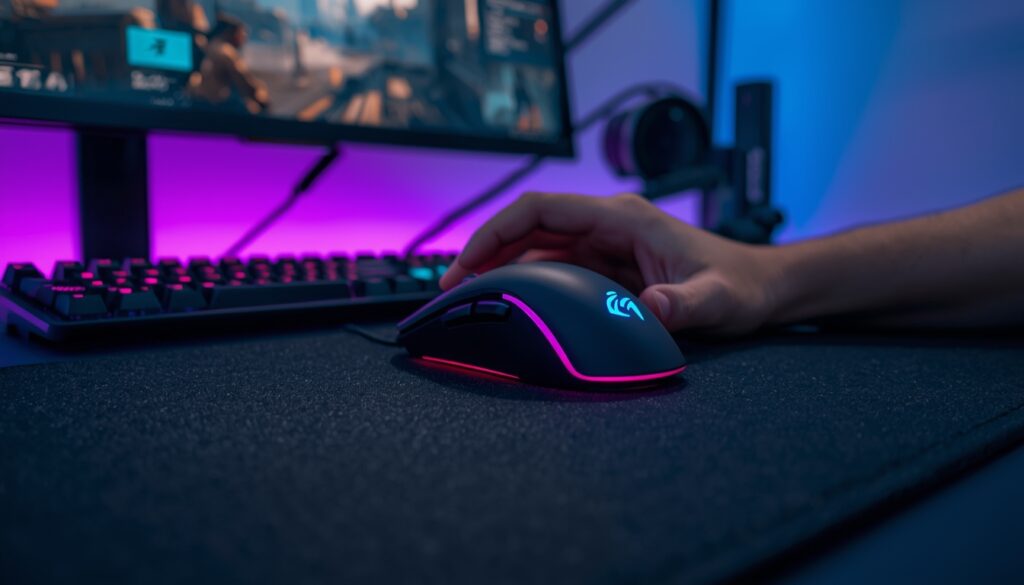
Something feels off about our mouse, and you cannot quite put your finger on it. Clicks land slightly wrong. Scrolling feels rushed. In games, your aim is inconsistent even when your reaction time is fine.
Nine times out of ten, the culprit is a DPI setting nobody ever told you to check.
Mouse DPI is one of those settings that comes pre-configured out of the box, and most people never touch it again. Meanwhile, it has a direct effect on how precise, comfortable, and in control your cursor feels every single day.
So what is a good DPI for a mouse? This guide answers that question for gamers, office workers, and creative professionals, and gives you the exact numbers to use right now.
What Does DPI Actually Mean?
DPI stands for Dots Per Inch. In the context of a mouse, it measures how many pixels your cursor moves on screen for every inch you physically move the mouse across your desk.
A mouse set to 800 DPI moves your cursor 800 pixels per inch of movement. Set it to 1600 DPI, and the same physical movement sends the cursor twice as far. That’s it. Simple as that.
Some manufacturers use the term CPI (Counts Per Inch), which means the same thing. The hardware sensor counts how many tiny movements it detects per inch and translates that into cursor movement on your screen.
Important: DPI is a hardware sensitivity setting. It’s different from the pointer speed slider in Windows or the sensitivity setting inside a game. Those are software multipliers that stack on top of your DPI, a concept we’ll explain shortly.
What Is a Good DPI for a Mouse?
Before diving into details, here’s a fast reference based on what most users and professionals actually prefer:
| Use Case | Recommended DPI | Why It Works | Notes |
| Competitive FPS Gaming | 400 – 800 | Maximum precision; fine control for headshots | Most CS2/Valorant pros use this range |
| General Gaming | 800 – 1600 | Balanced speed and control across genres | Good all-rounder for RPGs, MOBAs, and BR games |
| Office / Everyday Use | 800 – 1200 | Comfortable navigation without overshoot | Ideal for single 1080p or 1440p monitor |
| 4K / Multi-Monitor Setup | 1200 – 1800 | More cursor travel needed for large screen real estate | Raise gradually; 1600 is a solid baseline |
| Graphic Design / Photo Editing | 1200 – 2400 | Fast navigation + fine pixel control for detail work | Pair with lower software sensitivity for precision |
| Video Editing / CAD | 1600 – 3200 | Large canvases require efficient cursor travel | Reduces arm fatigue over long sessions |
Best DPI for Gaming: What the Pros Actually Use
Walk through any major esports event and ask the top players what DPI they run. The answer might surprise you. Despite gaming mice advertising 30,000+ DPI, most competitive players sit well below 1,000 DPI.
FPS & Tactical Shooters (Valorant, CS2, Apex Legends)
The sweet spot for FPS gaming is 400 to 800 DPI. Lower sensitivity forces you to use your arm rather than just your wrist, and arm-aiming produces far more consistent, repeatable movements.
When you flick with your wrist at 3,200 DPI, tiny tremors get amplified. At 400–800 DPI, those micro-tremors barely register. That’s why most pro players in precision shooters land in this range.
Battle Royale & Third-Person Games
Games like Fortnite, PUBG, and Warzone reward both precision and fast 180-degree turns. A DPI of 800–1200 gives you enough speed for quick rotations while keeping aim consistent during gunfights.
Strategy, MOBA & RPG Games
RTS and MOBA games don’t demand the same pinpoint accuracy as shooters. A DPI of 1000–1600 works well here; you’ll navigate maps quickly without losing control of small click targets.
The Real Number That Matters
Here’s something most basic DPI guides skip over, and it’s arguably the most important concept in mouse sensitivity.
eDPI stands for Effective DPI. The formula is simple:
eDPI = Mouse DPI × In-Game Sensitivity
Two players can have completely different DPI settings but the exact same feel if their eDPI matches. For example:
- 800 DPI × 1.0 in-game sensitivity = 800 eDPI
- 400 DPI × 2.0 in-game sensitivity = 800 eDPI
- 1600 DPI × 0.5 in-game sensitivity = 800 eDPI
All three feel identical in practice. This is why arguing over DPI numbers without context is pointless. Focus on your eDPI instead. Most CS2 and Valorant pros operate between 200–400 eDPI. That’s deliberately low, designed for maximum control.
Best DPI for Office Work and Everyday Use
Gaming gets all the attention, but most people use their mouse for work, browsing, spreadsheets, email, and documents. The needs here are completely different.
For a standard 1080p monitor, 800 DPI is a reliable, comfortable starting point. You can move the cursor across the screen with a natural wrist motion, and clicking small UI elements feels precise rather than frustrating.
If you’re on a 1440p or 4K display or you use two monitors, bump up to 1200–1600 DPI. More screen real estate means you need to travel further, and higher DPI reduces the physical effort required.
Pro tip: The best test? Move your cursor from one screen edge to the other in a single comfortable wrist motion. If you’re straining to reach, increase DPI. If you’re constantly overshooting small targets, lower it.
Best DPI for Graphic Design and Creative Work
Creative professionals, illustrators, photographers, and video editors deal with a unique challenge: they need fast navigation across large canvases and extreme precision for fine detail work, often in the same session.
Most designers land between 1200 and 2400 DPI, then compensate with lower software sensitivity for precision tasks. This gives them the range of motion they need without constantly lifting and repositioning the mouse.
For tasks like pixel-level retouching or precise path work in Illustrator, some designers even temporarily drop to 400–600 DPI through a DPI button on their mouse, then flip back up for navigation.
Busting Common DPI Myths in 2026
Myth: Higher DPI = Better Mouse
Completely false. A budget mouse claiming 16,000 DPI is almost certainly using sensor interpolation software trickery that fakes high DPI by extrapolating between real data points. This reduces accuracy, not improves it. A quality sensor at 800 DPI will outperform an interpolated 16,000 DPI sensor every single time.
Myth: Low DPI Causes Pixel Skipping
This was a real concern with older optical sensors from the early 2010s. Modern sensors like the PixArt PAW3395 and PAW3950 found in today’s gaming mice track sub-pixel movements accurately at 400 DPI without any skipping, even on 4K displays.
Myth: You Need 16,000+ DPI for Competitive Gaming
The math simply doesn’t work. At 16,000 DPI, moving your mouse one inch sends your cursor 16,000 pixels across the screen, far beyond any human’s ability to control precisely. The professional esports world consistently demonstrates that 400–800 DPI is the competitive standard.
How to Change Your Mouse DPI
There are three common ways to adjust your mouse’s DPI:
- DPI button on the mouse: Most gaming and productivity mice have a dedicated DPI button (usually near the scroll wheel). Pressing it cycles through preset DPI levels like 400, 800, 1600, and 3200.
- Manufacturer software: Apps like Razer Synapse, Logitech G HUB, Corsair iCUE, and SteelSeries GG let you set precise custom DPI values and create multiple profiles for different tasks.
- Fixed DPI (budget mice): Basic office mice typically don’t have adjustable DPI. Their sensor runs at a fixed factory setting, usually 800 or 1000 DPI, with no way to change it.
One more thing to always check: turn off Mouse Acceleration (called “Enhance Pointer Precision” in Windows). This setting makes cursor speed vary based on how fast you move the mouse, which destroys muscle memory and makes consistent aiming impossible.
If you’re looking to improve your full gaming setup, not just your mouse DPI, including keyboard choice and mouse configuration tips, check out our full optimization guide.
Does Monitor Resolution Affect the Right DPI?
Yes, and this is a point many DPI guides overlook entirely.
A 1080p monitor has 1,920 × 1,080 pixels across its surface. A 4K monitor has 3,840 × 2,160. At the same DPI, your cursor travels proportionally less of the total screen on a higher-resolution display.
This is why 800 DPI feels perfectly snappy on a 1080p screen but might feel sluggish when you upgrade to 4K. As a rule of thumb: if you double your resolution, consider increasing your DPI by roughly 25–50% to maintain a similar feel.
| Resolution | Starting DPI (Gaming) | Starting DPI (Office) | Feel |
| 1080p (1920×1080) | 800 | 800 | Snappy and natural |
| 1440p (2560×1440) | 800 – 1000 | 1000 – 1200 | Slightly more effort |
| 4K (3840×2160) | 1200 – 1600 | 1400 – 1800 | Higher DPI prevents fatigue |
| Dual Monitor Setup | 1200+ | 1400+ | More travel = more DPI needed |
FAQ’s
What is a good DPI for a mouse?
For most users, 800 to 1600 DPI covers everything from gaming to everyday productivity. Competitive FPS gamers typically prefer 400–800 DPI for precision. Office users and general desktop navigation feel best between 800–1200 DPI. There’s no universal “best” number; it depends on your monitor size, desk space, and how you use your mouse.
Is higher DPI always better?
No. Higher DPI means faster cursor movement, but that comes with less control and precision.
What DPI do most pro gamers use?
The majority of professional CS2 and Valorant players use between 400 and 800 DPI. When combined with a low in-game sensitivity, this gives an eDPI of roughly 200–400, a range proven to support maximum precision in competitive play.
What is eDPI and why does it matter?
eDPI (Effective DPI) equals your mouse DPI multiplied by your in-game sensitivity. It’s the true measure of how fast your cursor moves in a game.
What DPI should I use for office work?
For standard office tasks on a 1080p or 1440p monitor, 800–1200 DPI is the comfortable range for most users. If you’re on a 4K display or dual monitors, consider 1400–1800 DPI to reduce the physical effort of navigating large screen real estate.
How do I change my mouse DPI?
Use the dedicated DPI button on your mouse (cycles through presets), or install your mouse’s companion software (Razer Synapse, Logitech G HUB, Corsair iCUE, etc.) for precise custom DPI values.
Does DPI affect gaming performance?
Indirectly, yes. Finding your optimal DPI and sticking with it allows your muscle memory to develop, which directly improves consistency in gaming. The wrong DPI, usually too high, creates “twitchy” movements that make accurate aiming harder. Choose a DPI, commit to it for a week, and adjust only in small increments.
Ready to Take Your Setup to the Next Level?
Getting your DPI right is just one piece of the puzzle. Your keyboard, mousepad, and overall desk ergonomics all play a role in how well you perform, whether you’re grinding ranked matches or powering through a full workday.
Conclusion
DPI is one of the most misunderstood specs in the PC peripheral world.
For competitive gaming, 400–800 DPI with a low eDPI gives you the precision pros rely on. For everyday office work, 800–1200 DPI keeps things smooth and comfortable. Creative professionals benefit from the flexibility of 1200–2400 DPI with on-the-fly adjustments for detail work.